If you are reading this article, then you must be familiar with automated testing and its benefits.
Automated testing has become an integral part of the testing process, and rightly so, as it gives an accurate outcome in half the time, no matter how many times you decide to run your tests. This is a huge advantage over manual testing, which is prone to human errors and incomplete test coverage due to time constraints.
The current market offers a varied range of test automation frameworks, each with its own strengths and limitations. Playwright is one of them, a powerful test automation tool that has gained popularity. Let’s look at the offerings of this framework and where it is best suited.
| Key Takeaways: |
|---|
|
What is Playwright?

Playwright is an open-source automation library developed by Microsoft for end-to-end testing of web applications. It helps the testing team automate browser interactions reliably and quickly. Using Playwright, we can execute automation across multiple browsers, including Chromium, Firefox, and WebKit. Playwright provides a unified framework for both UI and API testing, allowing users to validate backend services and front-end behavior within a single test suite.
Playwright supports scripting in different languages such as JavaScript, TypeScript, Python, C#, and Java. Playwright’s comprehensive feature set makes it suitable for a wide range of web testing scenarios, from simple page interactions to complex, stateful applications, including single-page applications (SPAs) and progressive web applications (PWAs).
Why Teams are Choosing Playwright
In 2026, many teams are moving toward Playwright for one simple reason: test reliability at scale.
- Built-in auto-waiting reduces flaky failures without custom waits
- Faster execution compared to traditional WebDriver-based tools
- Native support for parallel testing
- First-class support for modern browser capabilities
Playwright shifts the focus from:
“How do we make this test pass?” to “How do we make this test reliable by default?”
Core Features of Playwright
- Cross-Browser Automation: Using Playwright, we can run tests across different browsers, which is one of its standout features. It supports Chromium (which powers Google Chrome and Microsoft Edge), WebKit (used by Safari), and Firefox. This cross-browser support ensures that applications behave consistently across different environments, which is crucial for web applications that need to cater to a diverse audience using various browsers.
- Auto-wait and web-first assertions: Playwright waits for elements to be actionable before executing actions. Assertions automatically retry until conditions are satisfied. No artificial timeouts, no flaky tests. Eliminates the need for explicit waits in most cases.
- Resilient Locators: Identify elements with selectors that replicate how users see the page:
getByRole,getByLabel,getByPlaceholder,getByTestId—no fragile CSS paths. - Parallelism and sharding: Tests are executed in parallel by default across all configured browsers. Shard across multiple machines for faster CI. Full cross-browser coverage on every commit.
- Cross-platform Support: You can use Playwright to test applications across multiple platforms like mobile (Android), web, and desktop (MacOS, Linux, Windows).
- Mobile Emulation: Playwright can emulate mobile devices, including their geolocation, screen size, and other device-specific characteristics.
- Multi-language Support: Playwright supports creating test scripts in different languages such as JavaScript, TypeScript, Python, Java, and C#. This flexibility allows teams to integrate Playwright into their existing workflows easily.
- Headless and Headful Modes: With Playwright, we can run tests in headless mode (without a graphical interface) for faster execution in CI environments or in headful mode for development and debugging purposes.
- Browser Contexts: It introduces isolated browser contexts within a single browser instance, allowing for concurrent, independent sessions. This feature is particularly useful for testing scenarios involving multiple users or sessions without cross-test interference.
- Automated Screenshots and Video Recording: Playwright can capture screenshots and record videos of test runs, aiding in debugging by providing visual insights into test executions.
- Network Interception and Mocking: Playwright allows the interception of network requests, enabling testers to mock responses, validate outgoing requests, or simulate different network conditions.
- Robust Assertion API: It offers powerful APIs for assertions that automatically wait for elements to reach the desired state before interacting with them, reducing flaky tests.
- Automation Capabilities: Using Playwright, you can automate a wide range of browser interactions, such as clicking buttons, filling out forms, and navigating between pages. It’s capable of handling both traditional multi-page applications and complex single-page applications, along with:
- Frame Handling: Web applications often use iframes to embed external content or isolate parts of the page. Playwright can seamlessly enter and interact with content within these frames, essential for testing applications that rely on iframes.
- Shadow DOM Piercing: Modern web development often uses Shadow DOM to encapsulate parts of a web component’s functionality and styling. Playwright’s selectors can ‘pierce’ through the Shadow DOM, allowing it to interact with and test elements inside these encapsulated parts of the page.
- Auto-wait for Elements: Playwright automatically waits for elements to be ready before performing actions, reducing flakiness and eliminating the need for manual waits.
- Trusted Events: This framework allows creating events that are:
- Real Browser Input: Playwright generates events that are indistinguishable from those created by real users. This includes nuanced interactions like hovering, clicking, typing, and other dynamic controls.
- Dynamic Controls Interaction: It can interact with complex and dynamic web elements that change in response to user actions, ensuring that automated tests behave as close to real user interactions as possible.
- Indistinguishability: The events generated by Playwright are ‘trusted’, meaning browsers recognize them as genuine user actions rather than synthetic events generated by scripts. This is crucial for testing features that respond differently to user-generated and script-generated events.
- Rich Browser Context and Test Isolation: It offers browser context functionality, allowing each test to run in an isolated environment (each test has its own independent local storage, session storage, cookies, etc.), which helps test multi-session scenarios like user logins. Playwright achieves this using BrowserContext, which is similar to incognito-like profiles.
- CI Testing: You can integrate Playwright with other tools and frameworks that provide CI environments. Through this, you can achieve continuous testing.
- Accessibility Testing: It includes tools for testing web accessibility, helping ensure that web applications are usable by people with special needs.
- CLI for Coding Agents: Token-efficient command-line interface with installable skills. This feature is purpose-built for Claude Code, GitHub Copilot, and similar coding agents that need to balance browser automation with large codebases.
- Session Monitoring: Visual dashboard with live screencast previews of all currently running browser sessions. Users can click any session to zoom in and take control.
- MCP Server: Drop-in Model Context Protocol server for VS Code, Cursor, Claude Desktop, Windsurf, and any MCP client. Full browser control through standard tool calls.
- Accessibility Snapshots: Agents interact with pages through structured accessibility trees: element roles, names, and refs. Deterministic and unambiguous, no vision models required.
- Record-and-playback Using Codegen: Playwright has a tool that can generate test scripts by observing your interactions with the browser.
Getting Started with Playwright
Setting up Playwright is straightforward and involves installing the Playwright library and setting up a basic configuration. Below is a brief guide to getting started with Playwright in a JavaScript/TypeScript environment:
Prerequisites
Node.js: Ensure you have Node.js installed on your system. Playwright requires Node.js version 12 or higher.
Installation
You can go via two methods – the first is directly installing through your command line, and the other is through Visual Studio. If you opt for the latter, having Visual Studio Code (VSCode) on your PC is a prerequisite.
Method 1: Using the Command Line
- Create a project directory: Organize your project files in a proper directory system.
- Initialize a Node.js Project: Run
npm init -yto create a package.json file. This step is essential for managing your project’s dependencies. - Install Playwright: Run
npm init playwright@latest. This command installs Playwright and its browser binaries (Chromium, Firefox, and WebKit) as a development dependency in your project.
Method 2: Using VSCode
- Install Playwright: Open VSCode and install Playwright from the marketplace or the extensions tab.
- Set up Playwright: Once installation is complete, paste Install Playwright in the command panel.
Creating a Test Script
const { chromium } = require('playwright');
(async () => {
  const browser = await chromium.launch();
  const page = await browser.newPage();
  await page.goto('https://example.com');
  console.log(await page.title());
  await browser.close();
})();
This script launches Chromium, navigates to “https://example.com”, prints the page title, and closes the browser.
Running the Script
Save the script in a file (e.g., test.js) and run it using Node.js with the command: node test.js
You should see the title of the webpage printed in the console, indicating that Playwright is set up correctly.
Playwright Test Runner
- To install Playwright test: npm install @playwright/test
- Now, let’s create a sample test script:
const { test, expect } = require('@playwright/test'); test('basic test', async ({ page }) => { await page.goto('https://example.com'); const title = await page.title(); expect(title).toBe('Example Domain'); }); - To run the test using Playwright test runner: npx playwright test
This command runs the test, and Playwright Test Runner handles test execution, reporting, and retries.
Advanced Playwright Features
- Handling Authentication: Many web applications require authentication, and Playwright provides several ways to handle login scenarios, including using cookies, sessions, or direct authentication APIs. Beyond UI-based login, Playwright now strongly encourages using storage state reuse for faster and more stable tests.
import { test, expect } from '@playwright/test';

test('login test', async ({ page }) => {
  await page.goto('https://example.com/login');
  await page.fill('#username', 'myusername');
  await page.fill('#password', 'mypassword');
  await page.click('#submit');
  await expect(page).toHaveURL('https://example.com/dashboard');
});
Modern Approach (recommended):
- Save the authenticated state once
- Reuse it across tests
// Save auth state

await page.context().storageState({ path: 'auth.json' });

// Reuse in config
use: {
  storageState: 'auth.json',
}
This feature helps with faster and more stable test suites. It avoids repeated logins. - Network Interception: Playwright allows interception of network requests, enabling testers to mock responses or validate outgoing requests.
await page.route('**/api/data', route =>
  route.fulfill({
    status: 200,
    contentType: 'application/json',
    body: JSON.stringify({ data: 'mocked data' }),
  })
);
It has improved support for updating requests before sending and enhanced the capability to mimic network failures and delays. This update makes it easier to test edge cases and isolate the frontend from backend dependencies. - Visual Testing: Playwright integrates well with visual regression testing tools, enabling the capture of snapshots and comparison against baseline images. Snapshot testing is now widely used for UI regression testing and layout validation. However, it still needs good baseline management to prevent false positives.
test('visual test', async ({ page }) => { await page.goto('https://example.com'); expect(await page.screenshot()).toMatchSnapshot('example.png'); }); - Parallel Execution: Playwright supports running tests in parallel, which significantly reduces the time required to run large test suites. Parallelism can be configured via the test runner’s configuration file. Here, “workers” refers to the parallel execution threads. With smarter worker distribution and improved isolation using browser contexts, teams observe faster CI pipelines and scalable test execution.
// playwright.config.js module.exports = { workers: 4, // Number of parallel workers }; - Playwright CLI (Agent-Oriented Automation): Playwright now includes a dedicated CLI (
@playwright/cli) built for browser control via terminal commands. Compared to a traditional test runner, CLI is stateless and command-driven. It is optimized for AI agents and automation workflows and is efficient for handling large test contexts. It allows for running automation without having to write full scripts, generate tests and snapshots, and capture traces, screenshots, and session data. - Debug CLI (–debug=cli): CLI-based debugging is now supported. It allows tests to be debugged directly from the terminal without relying on UI tools. This enables step-by-step debugging through the command line. CLI-based debugging is useful for CI environments and coding agents. It works smoothly with Playwright CLI and trace analysis. It allows debugging workflows to shift from GUI-based debugging to terminal-first debugging. This is especially valuable when working with AI coding agents like Copilot or Claude Code.
- Shared Browser Session: An important new feature is the ability to bind a browser instance and share it across multiple tools or clients.
const { endpoint } = await browser.bind('my-session', {
workspaceDir: '/my/project',
});
It allows for multiple tools like test runner, MCP, and CLI to connect with the same browser, persistent browser sessions across workflows, and cross-tool debugging and collaboration. This feature is useful for AI-driven execution, debugging distributed tests, and multi-tool or multi-user situations. - Advanced Video Recording: Playwright now offers a programmatic screencast API:
const screencast = await page.screencast();
await screencast.start({ path: 'video.webm' });
await screencast.showActions();
await screencast.stop();
This replaces older video recording approaches and provides more valuable visual debugging artifacts. - Screencast API (page.screencast): Playwright now supports controlled screen recording with start/stop options, action annotations, visual overlays, chapter markers, and real-time frame capture. This is useful for debugging, reporting, and creating “video receipts” of test or agent activity.
- Playwright CLI: Enhanced CLI tooling for executing, debugging, and inspecting tests without UI dependency.
- Trace CLI (npx playwright trace): Analyze traces directly from the terminal for faster, headless debugging.
- ‘await using’: Simplifies resource management and automatic cleanup in tests.
- Snapshots & Advanced Locators: Stable UI validation using snapshots and accessibility-first locators.
- Storage & Console APIs: Programmatic control over local/session storage and browser console events.
- Trace Mode Enhancements: Richer traces with better timeline, logs, and debugging insights.
- API Testing Integration: Playwright now supports API testing alongside UI tests. By combining API and UI testing in a single framework, it offers faster verification of backend flows.
- Component Testing: It is a newer capability that Playwright is increasingly using in modern frontend stacks. It is useful for validating UI components in isolation and for faster feedback cycles.
- AI Agents & Test Agents: Playwright supports AI-powered test agents that allow tools like Copilot and Claude to interact with browsers through structured, accessibility-first data (roles, labels) instead of fragile selectors. These agents can navigate applications, generate and execute test flows, extract data, and debug failures using traces, enabling more deterministic, scalable, and AI-driven automation with reduced manual scripting.
The main capabilities of the agents include structured page interaction, deterministic automation, tool-based execution (MCP integration), and End-to-End workflow automation. There are 3 main Playwright test agents: planner, generator, and healer.The planner will analyze the app and make the Markdown plan. The generator will make Playwright test files from the Markdown plan. And the healer runs the test suite and also repairs failed tests automatically.
- You want fast, reliable E2E tests
- Your team can write and maintain code
- You need cross-browser testing with minimal overhead
- Flaky tests are slowing down your releases and are a major concern
- You need a no-code solution
- Your team doesn’t have long-term programming expertise
- Your focus is on mobile or desktop testing
- Use Explicit Waits: Playwright’s APIs are designed to handle waits internally, but it’s essential to use explicit waits (like
waitForSelector) in scenarios where elements may take longer to load due to network delays or animations. - Organize Tests Effectively: Organize test files and directories logically, separating tests by functionality or feature to keep the suite maintainable. Use meaningful test names and group related tests using
describeblocks. - Leverage Browser Contexts: Use browser contexts to isolate tests and avoid cross-test pollution. This practice ensures that each test runs in a clean state without interference from other tests.
- Mock External Services: To improve test reliability and speed, mock external services, such as APIs or third-party integrations. Playwright’s network interception features make this straightforward.
- Optimize Test Performance: Minimize test run times by reducing unnecessary navigation steps, using headless mode in CI environments, and leveraging parallel execution.
- Maintain Test Stability: Avoid flaky tests by using stable element selectors, handling async operations correctly, and using Playwright’s robust APIs to wait for elements to be in the desired state before performing actions.
- Use Playwright’s Debugging Tools: Playwright offers several debugging tools, including verbose logging, live debugging with the Inspector, and video recording of test runs. Use these tools to troubleshoot failing tests effectively.
- CI/CD Integration: Integrate Playwright into your CI/CD pipelines to automate the execution of tests on each code commit. Playwright’s headless mode and parallel execution make it an ideal choice for CI environments.
- Automatic waiting for elements to be ready
- Smart retry mechanisms
- Built-in synchronization
- Less time debugging failures
- More trust in test results
- Faster CI/CD pipelines
- Cross-Browser Support: Unlike Cypress, which only supports Chrome-family browsers, Playwright supports multiple browsers, including Firefox and WebKit, making it more versatile for cross-browser testing.
- Performance: Playwright’s architecture, which includes headless browser execution and parallel test runs, allows it to perform faster than Selenium, especially when testing large suites.
- Modern APIs: Playwright offers a modern, intuitive API that is easy to use and reduces the boilerplate code required for writing tests. Its APIs are designed to handle common challenges in web automation, such as handling network requests and dealing with frames.
- Isolation via Browser Contexts: Playwright’s use of browser contexts is a unique feature that provides isolated environments within the same browser instance, which is not directly supported by Selenium.
- Developer-focused Features: Playwright includes features like auto-waiting, built-in support for mobile emulation and network interception, which are tailored towards modern web development practices.
- Is Playwright better than Selenium?
A: It depends. Playwright offers better speed and reliability out of the box, while Selenium has a larger ecosystem and community.
- Is Playwright suitable for beginners?
A: Not entirely. It requires programming knowledge, making it more suitable for developers and SDETs.
- When should you avoid using Playwright?
A: Playwright may not be the best choice if your team prefers no-code tools, lacks programming expertise, or needs to test desktop or native mobile applications.
- Is Playwright suitable for API testing or only UI testing?
A: Playwright supports both UI and API testing within the same framework. This allows teams to validate backend responses and frontend behavior together, reducing the need for multiple tools.
Trace Viewer
Playwright Trace Viewer is a GUI tool that enables you to explore recorded Playwright traces after the script has executed. When enabled, Playwright records detailed traces of your tests, including all the actions performed, DOM snapshots, network requests, console logs, and screenshots. These traces can be viewed in a visual interface called the Trace Viewer, which allows you to step through each action and inspect the state of the application at any given point. You can enable tracing for all tests by setting the trace option to ‘on’ in your Playwright configuration file (playwright.config.js). This setting will automatically capture traces for all tests, which can be particularly useful when debugging test suites or understanding failures.
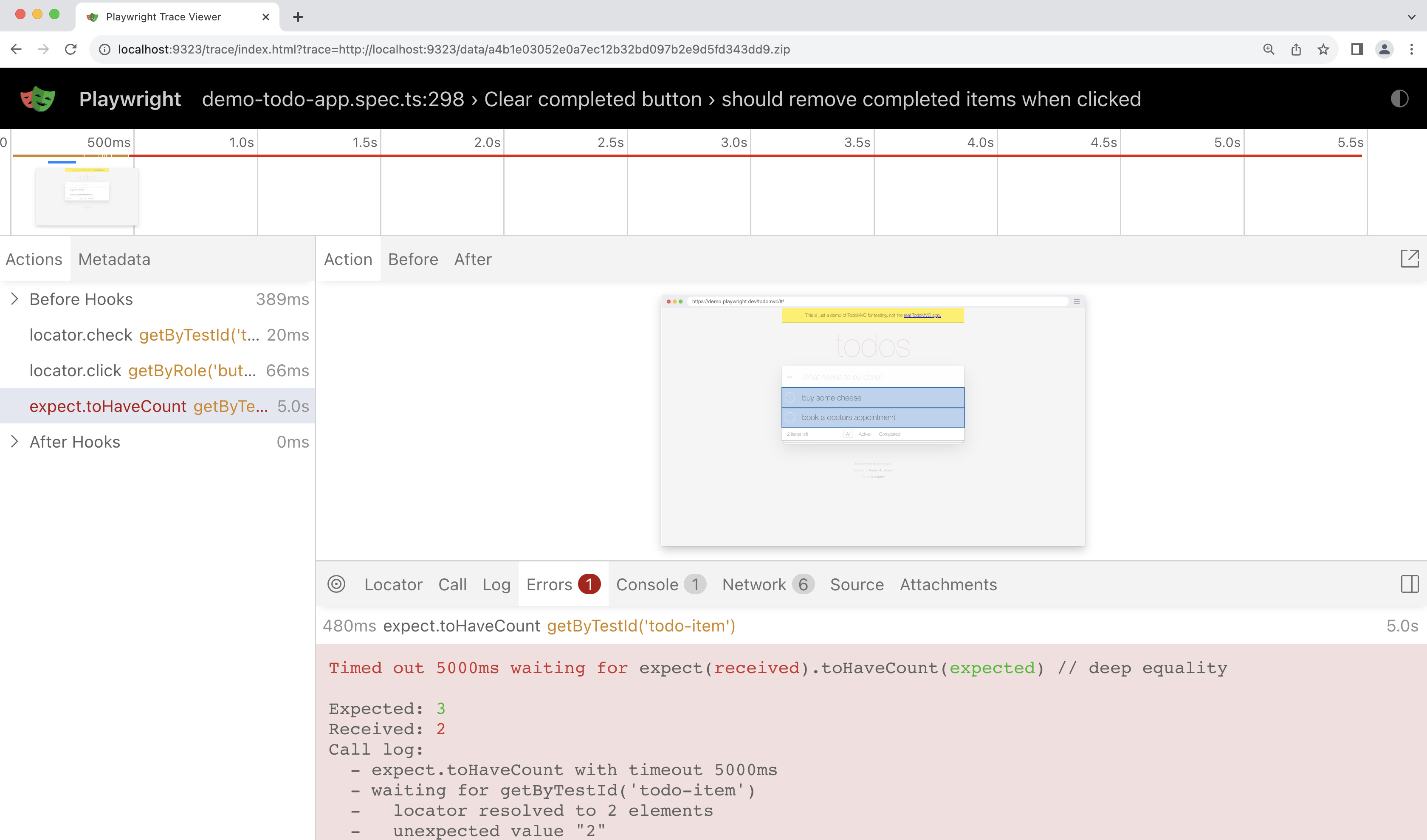
Viewing the Trace: After running the tests with trace enabled, Playwright will generate trace files (e.g., trace.zip). You can view these traces using the Playwright Trace Viewer: npx playwright show-trace trace.zip
CLI Support: In addition to the visual Trace Viewer UI, Playwright now provides a CLI-based trace analysis capability: npx playwright trace trace.zip. The tool now supports analyzing traces directly from the terminal, removing the need to open the browser-based Trace Viewer UI. This makes it particularly useful for CI/CD pipelines and headless environments, allowing automated debugging workflows at scale. It is especially useful for large test suites, AI-driven debugging, and quickly inspecting failures without GUI overhead.
Overall, this enhancement complements the existing Trace Viewer by combining visual debugging through the UI with efficient, automated debugging via the CLI.
How It’s Useful: The Trace Viewer makes debugging much easier by providing a timeline of events that occurred during the test. This visual representation helps identify exactly where a test failed, what actions were performed before the failure, and what the state of the application was. It is especially valuable for diagnosing flaky tests and understanding complex interactions that are hard to spot through logs alone.
What It Can’t Do: While the Trace Viewer provides a comprehensive view of what happened during the test, it does not offer automatic solutions for fixing issues. It requires a human to analyze the trace data and determine the root cause of any problems.
Test Generator
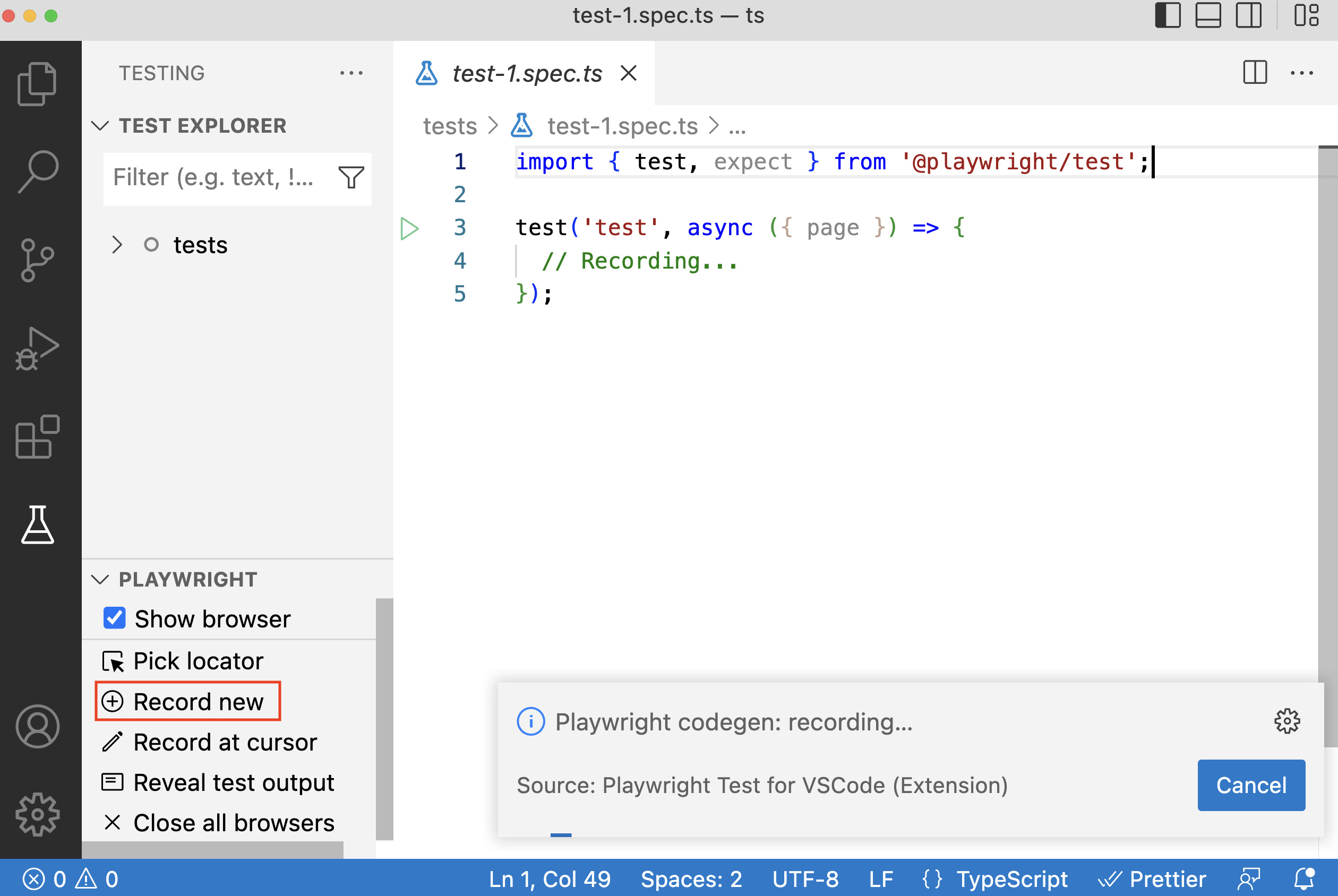
The Test Generator is a tool in Playwright that helps you automatically create tests by recording your interactions with the application. As you manually navigate and interact with the app in a browser, Playwright generates the corresponding test code. This feature is available via the Playwright CLI, and it’s particularly useful for quickly creating test scripts without writing all the code manually. You can also install the VS Code extension and generate tests directly from VS Code. The extension is available on the VS Code Marketplace.
To start recording via CLI, you need to pass the command: npx playwright codegen <url>
If it’s via VS Code, then you can find the record button on the left side menu.
Once you start recording, go to the URL you wish to test and start clicking around to record your user actions.
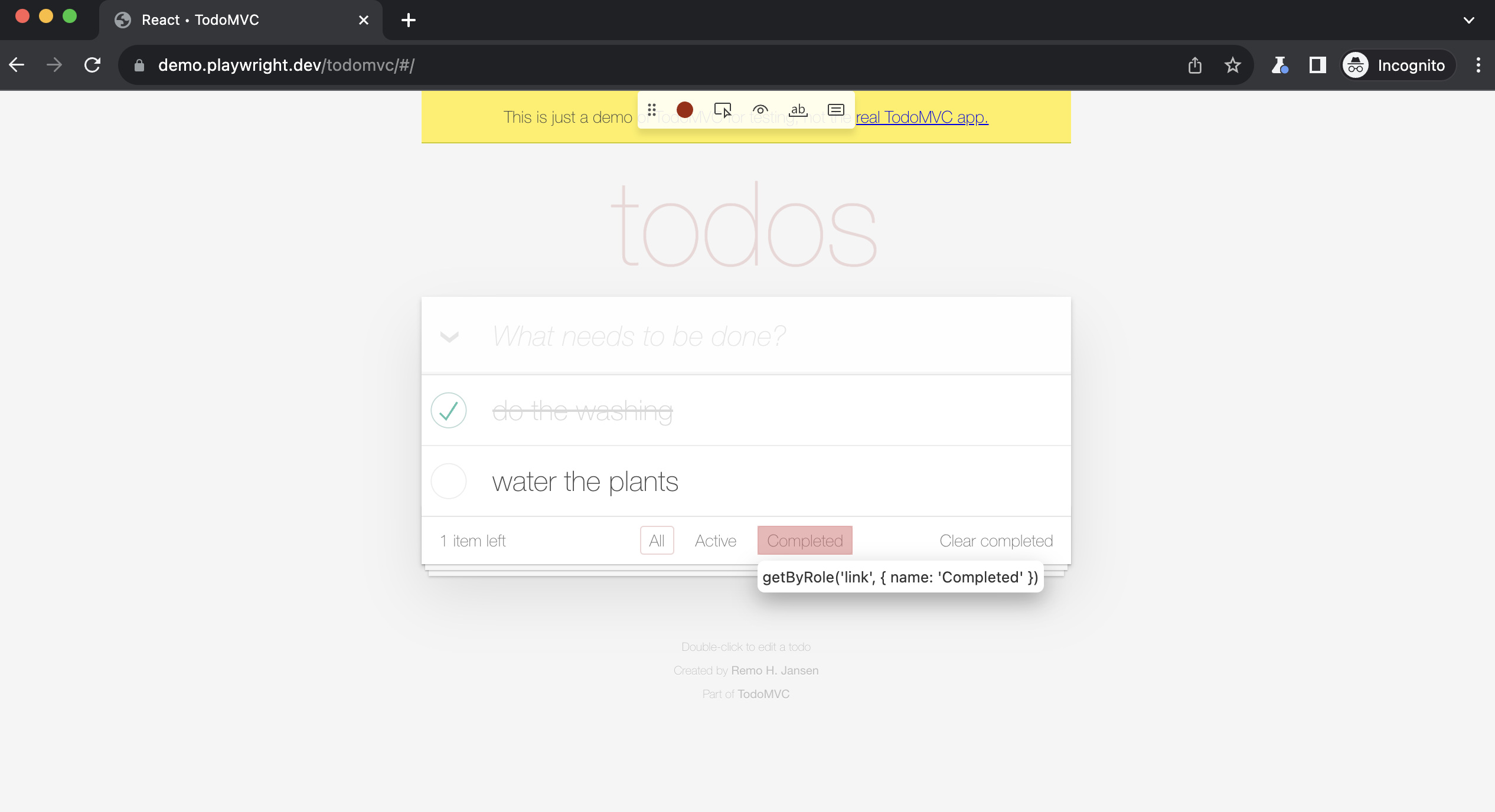
How It’s Useful: The Test Generator simplifies the process of creating automated tests by capturing actions like clicks, inputs, and navigation and converting them into code. It saves time, especially for beginners or for creating initial test scripts, and ensures that the tests are syntactically correct and follow Playwright’s best practices.
What It Can’t Do: While the Test Generator is great for getting started, it may not always produce the most optimized or maintainable test code. The generated tests might need manual refinement to handle dynamic content, add assertions, or customize for specific scenarios. Additionally, it can’t replace the nuanced logic and decision-making required to write comprehensive test cases for complex applications.
How to Decide if Playwright Is the Right Tool
Decision rule: If your team thinks like developers, Playwright is a good contender.
Playwright Best Practices
Solving a Common Problem: Flaky Tests
One of the biggest challenges in test automation is flaky tests caused by timing issues.
If your existing framework needs frequent manual waits or retries, Playwright can significantly reduce that overhead.
Who Should Consider Playwright?
| Category | Good Fit for Playwright | Not Ideal for Playwright |
|---|---|---|
| Team Skillset | Teams with programming experience (JavaScript, Python, Java, .NET) | Manual testers with little or no coding experience |
| Application Type | Modern web apps (React, Angular, Vue, SPAs) | Native mobile or desktop applications |
| Testing Approach | Code-first automation (SDET-driven teams) | No-code / low-code automation preference |
| Testing Needs | End-to-end testing, cross-browser testing, API + UI testing | Simple test cases with minimal automation needs |
| CI/CD Maturity | Teams using CI/CD pipelines and parallel execution | Teams without automated pipelines |
| Pain Points | Teams are struggling with flaky or slow tests | Teams without reliability or scaling issues |
| Scalability Needs | Large projects needing parallel execution and isolation | Small projects with limited test coverage |
Playwright vs. Other Coded Automation Tools
Playwright – Pros & Cons
| Pros | Cons |
|---|---|
| Cross-Browser Support: Playwright supports Chromium, Firefox, and WebKit, providing comprehensive testing across all major browsers. | Resource Intensive: Playwright can be resource-heavy, especially when running multiple browser instances simultaneously, which might affect system performance. |
| Multi-Language Support: It offers SDKs for JavaScript, TypeScript, Python, Java, and C#, making it accessible to a broad range of developers. | Learning Curve: Despite its modern APIs, new users might face a learning curve due to its extensive feature set and configuration options. |
| Isolation via Browser Contexts: Browser contexts allow for isolated testing environments within a single browser instance, reducing cross-test interference. | Limited Built-in Integrations: Compared to some other tools like Cypress, Playwright has fewer out-of-the-box integrations with third-party services (e.g., dashboards). |
| Network Interception and Mocking: Provides powerful network control features, allowing the interception and mocking of requests to simulate various scenarios. | Debugging Complexity: Debugging headless tests can be challenging, though Playwright provides tools like video recording and trace viewer to mitigate this. |
| Efficient Automation: Playwright’s auto-waiting mechanism reduces flakiness by waiting for elements to reach the correct state before interactions, enhancing test reliability. | Larger Installation Size: The installation package includes multiple browser binaries, which increases disk usage and setup time. |
| Robust Mobile Testing: Supports mobile emulation, enabling testing on various screen sizes and devices directly within the desktop environment. | Community and Ecosystem: Although growing, the Playwright ecosystem and community are smaller compared to more established tools like Selenium, which can affect the availability of plugins and extensions. |
| Parallel Execution: Playwright’s ability to run tests in parallel significantly reduces test execution time, making it ideal for CI/CD pipelines. | Browser Compatibility Issues: While Playwright supports multiple browsers, certain advanced features or behaviors may still differ slightly between browsers, requiring additional handling. |
| Headless and Headful Modes: Offers both modes for running tests, with headless mode ideal for CI and headful for debugging, providing flexibility for different stages of development. | Maintenance Overhead: Keeping up with the latest updates and managing browser versions can add to the maintenance effort, particularly in larger projects. |
Here is a comparison: Selenium vs. Playwright.
Conclusion
Playwright is a powerful tool for automating end-to-end testing of web applications, offering extensive cross-browser support and developer-friendly features. It helps teams ensure their web applications perform consistently across different browsers, making it ideal for maintaining high-quality standards. With its ability to handle complex scenarios like multi-user interactions and mobile testing, Playwright is well-suited for modern web development needs.
However, it may require a bit of a learning curve and additional setup effort, especially for those new to its advanced features. Despite these challenges, Playwright’s robust capabilities make it a valuable addition to any development team’s toolkit, enhancing testing efficiency and overall product reliability.